How to share Aboki from phone to phone with no data
Send the Aboki AI model to another phone with Xender, Nearby Share, Bluetooth or an SD card. Step by step, with no mobile data used.
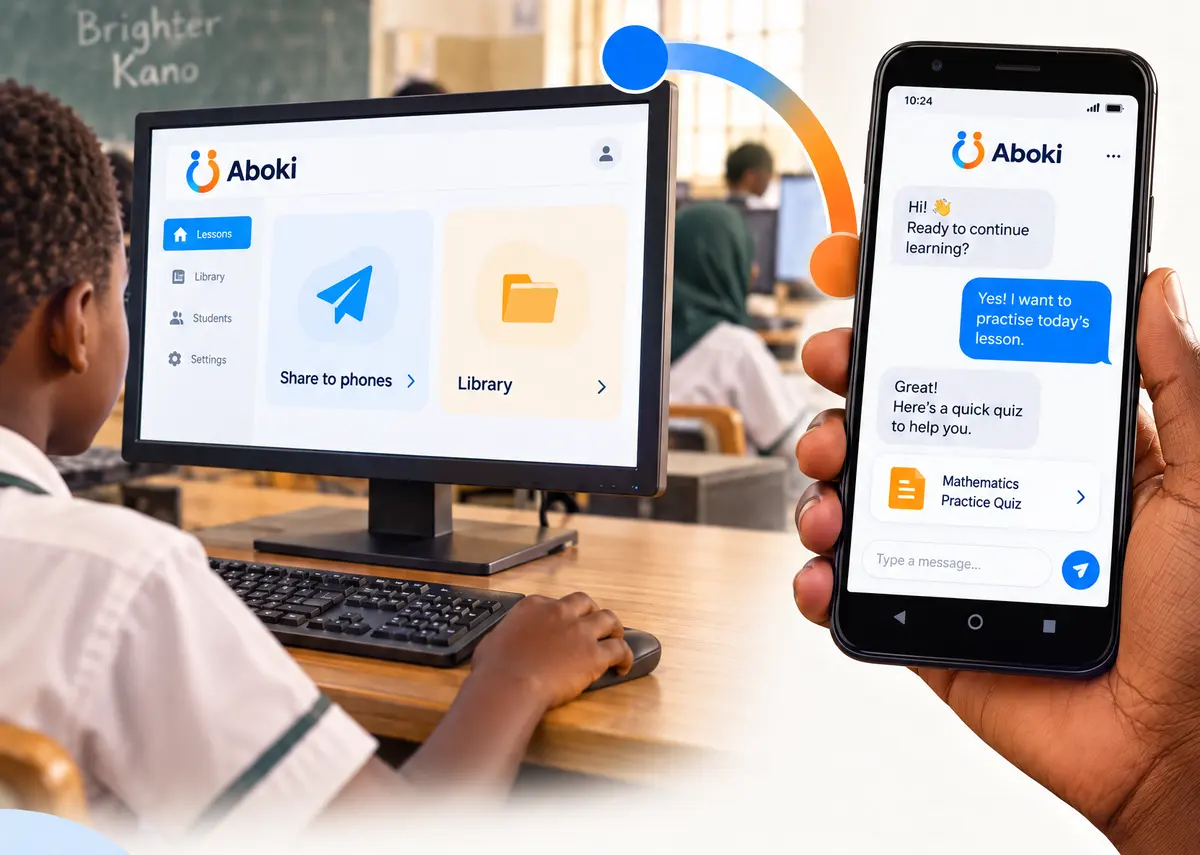
Aboki needs one big file, called a model, to think. Getting that file onto a phone is the only part of Aboki that involves moving a lot of data, and you never have to pay for it. It travels the same way music and videos already do: from one phone to the next.
Which file to share
Aboki's model files end in .gguf. These are the four:
| Model | File name | Size |
|---|---|---|
| Aboki Lite | gemma-3-1b-it-Q4_0.gguf | 704 MB |
| Aboki Study | Qwen3-1.7B-Q4_K_M.gguf | 1.0 GB |
| Aboki Pro | gemma-3-4b-it-Q4_K_M.gguf | 2.3 GB |
| Aboki Health | medgemma-4b-it-Q4_K_M.gguf | 2.3 GB |
If you are not sure which one your friend needs, start with Aboki Lite. It runs on phones with 3 GB of memory and is the quickest to send.
Sending it with Xender
- Open Xender on both phones and connect them.
- On the sending phone, go to Files and find the .gguf file, often in Downloads.
- Select it and tap Send. A 704 MB file usually takes a few minutes.
- Keep both phones close together and the screens on until it finishes.
Sending it with Nearby Share or Quick Share
- On the sending phone, open the Files app and find the .gguf file.
- Press and hold it, tap Share, then Nearby Share (called Quick Share on newer phones).
- On the other phone, accept the file when it appears.
Sending it with Bluetooth
Bluetooth works on almost every phone, but it is slow for a file this big. Expect a long wait for Aboki Lite and much longer for the bigger models. Use it when nothing else is available.
Using an SD card or a computer
A memory card is the easiest way to load many phones. Copy the .gguf file onto the card once, then put the card in each phone in turn. A school or community centre can also connect phones to a computer with a USB cable and copy the file straight across.
Adding the file on the new phone
- Install Aboki and open it.
- Go to Models and tap Choose model file.
- Find the .gguf file and choose it.
- Wait while Aboki copies it in. This can take a few minutes and uses no data. Keep Aboki open until it finishes.
When the copy is done, Aboki shows the model as In use, and you can start asking. If the new phone later needs space back, you can delete the original from Downloads; Aboki keeps its own copy.
Library packs travel the same way
Library packs are small files of trusted notes that Aboki reads before answering. They are tiny compared with a model, so they are quick to send. On the new phone, go to Library, tap Add library pack and choose Shared from another phone or From a file.
Want to load phones for a whole class? See our checklist for schools.
Quick answers
- Can I send the Aboki model with Xender?
- Yes. Send the model file (it ends in .gguf) with Xender, Nearby Share or Bluetooth. On the other phone, open Aboki, go to Models, tap Choose model file and pick it.
- Does sharing the model use data?
- No. Xender, Nearby Share, Bluetooth and SD cards move the file directly between devices without using mobile data.